

Source code: statsig-io/js-client-monorepo
Set Up the SDK
1
Install the SDK
To install the Statsig Web SDK, add the package via your preferred package manager. Include optional packages if you plan to enable Session Replay or Auto Capture.After installation, configure the SDK in your app entry point before rendering your UI.
- npm
- yarn
If you don’t need Session Replay or Auto Capture, omit the
@statsig/session-replay and @statsig/web-analytics packages.2
Initialize the SDK
Next, initialize the SDK with a client SDK key from the “API Keys” tab on the Statsig console. These keys are safe to embed in a client application.Along with the key, pass in a User Object with the attributes you’d like to target later on in a gate or experiment.Use
initializeAsync when you need to await the latest values. For a non-blocking approach, you can call initializeAsync() without awaiting and rely on cached values until the promise resolves.Use the SDK
Checking a Feature Flag/Gate
Now that your SDK is initialized, let’s check a Feature Gate. Feature Gates can be used to create logic branches in code that can be rolled out to different users from the Statsig Console. Gates are always CLOSED or OFF (thinkreturn false;) by default.
Reading a Dynamic Config
Feature Gates can be very useful for simple on/off switches, with optional but advanced user targeting. However, if you want to be able send a different set of values (strings, numbers, and etc.) to your clients based on specific user attributes, e.g. country, Dynamic Configs can help you with that. The API is very similar to Feature Gates, but you get an entire json object you can configure on the server and you can fetch typed parameters from it. For example:Getting a Layer/Experiment
Then we have Layers/Experiments, which you can use to run A/B/n experiments. We offer two APIs, but we recommend the use of layers to enable quicker iterations with parameter reuse.Logging an Event
Now that you have a Feature Gate or an Experiment set up, you may want to track some custom events and see how your new features or different experiment groups affect these events. This is super easy with Statsig - simply call the Log Event API for the event, and you can additionally provide some value and/or an object of metadata to be logged together with the event:Typed Getters
Layer, Experiment, and DynamicConfig objects support a typed get method. Using a fallback that matches the expected type helps avoid returning unintended values.
Evaluation Details
Each gate, config, experiment, and layer exposesdetails describing how the value was resolved.
reasonexplains the source (e.g.,Network:Recognized,Cache:Unrecognized).lcutis the last time any configuration changed in your project.receivedAtmarks when this response was received, useful for judging cache staleness.
/sdk/debugging for the full list of reason values.
Sample Projects
Explore end-to-end examples in thejs-client-monorepo samples folder for React, Next.js, precomputed clients, and more.
Parameter Stores
Parameter Stores hold a set of parameters for your mobile app. These parameters can be remapped on-the-fly from a static value to a Statsig entity (Feature Gates, Experiments, and Layers), so you can decouple your code from the configuration in Statsig. Read more about Param Stores here.Statsig User
You need to provide a StatsigUser object to check/get your configurations. You should pass as much information as possible in order to take advantage of advanced gate and config conditions. Most of the time, theuserID field is needed in order to provide a consistent experience for a given
user (see logged-out experiments to understand how to correctly run experiments for logged-out
users).
Besides userID, we also have email, ip, userAgent, country, locale and appVersion as top-level fields on
StatsigUser. In addition, you can pass any key-value pairs in an object/dictionary to the custom field and be able to
create targeting based on them.
Once the user logs in or has an update/changed, make sure to call updateUser
with the updated userID and/or any other updated user attributes:
Updating Users
CallupdateUserAsync when the signed-in user changes to fetch fresh values for that identity.
Prefetching Users
UseprefetchData to prepare values for another user so you can switch synchronously later.
Statsig Options
LoggingEnabledOption
default:"browser-only"
Controls logging behavior.
browser-only(default): log events from browser environments.disabled: never send events.always: log in every environment, including non-browser contexts.
boolean
deprecated
deprecated
Use
loggingEnabled: 'disabled' instead.boolean
default:"false"
Skip generating a device-level Stable ID.
boolean
default:"false"
Recompute every evaluation instead of using the memoized result.
string
Override the generated session ID.
boolean
default:"false"
Persist Stable ID in cookies for cross-domain tracking.
boolean
Prevent any local storage writes (disables caching).
NetworkConfig
Override network endpoints per request type.
StatsigEnvironment
Set environment-wide defaults (for example
{ tier: 'staging' }).LogLevel
default:"Warn"
Console verbosity.
number
default:"50"
Max events per log batch.
number
default:"10_000"
Interval between automatic flushes.
OverrideAdapter
Modify evaluations before returning them.
boolean
default:"true"
Attach the current page URL to logged events.
boolean
default:"false"
Send requests without Statsig-specific encoding.
LogEventCompressionMode
default:"Enabled"
Control compression for batched events.
boolean
deprecated
deprecated
Use
logEventCompressionMode instead.EvaluationsDataAdapter
Provide a custom data adapter to control caching/fetching.
CustomCacheKeyGenerator
Override cache key generation for stored evaluations.
Network Config Options
Network Config Options
string
default:"https://api.statsig.com"
Base URL for all requests (append
/v1).string
default:"https://prodregistryv2.org/v1/rgstr"
Endpoint for event uploads.
string[]
Fallback endpoints for event uploads.
number
default:"10000"
Request timeout in milliseconds.
boolean
Disable all outbound requests; combine with
loggingEnabled: 'disabled' to silence log warnings.function
Provide custom transport (e.g., Axios).
string
default:"https://featureassets.org/v1/initialize"
Endpoint for initialization requests.
Manual Exposures
You can query your gates/experiments without triggering an exposure, and manually log the exposures later:- Feature Gates
- Dynamic Configs
- Experiments
- Layers
Session Replay
Install@statsig/session-replay and register the plugin to record user sessions.
Web Analytics / Auto Capture
Install@statsig/web-analytics to automatically capture clicks, page views, and other standard web events.
Content Security Policy
Add Statsig endpoints to your CSPconnect-src directive when running the web SDK.
Statsig occasionally updates its network domains. Verify the latest list in Statsig Domains.
Lifecycle & Advanced Usage
Shutting Statsig Down
In order to save users’ data and battery usage, as well as prevent logged events from being dropped, we keep event logs in client cache and flush periodically. Because of this, some events may not have been sent when your app shuts down. To make sure all logged events are properly flushed or saved locally, you should tell Statsig to shutdown when your app is closing:StableID
Each client SDK has the notion of stableID, a devive-level identifier that is generated the first time the SDK is initialized and is stored locally for all future sessions. Unless storage is wiped (or app deleted), the stableID will not change. This allows us to run device level experiments and experiments when other user identifiable information is unavailable (Logged out users).Stable ID
Stable ID provides a consistent device identifier. It lets you run logged-out experiments and target gates at the device level.How Stable ID Works
- On first initialization the SDK generates a Stable ID and stores it in
localStorageunderstatsig.stable_id.<SDK_KEY_HASH>. - Subsequent sessions reuse the stored value. Each client SDK key has its own Stable ID entry.
- Local storage is scoped per domain, so cross-domain usage requires sharing the value manually (see below).
Reading the Stable ID
- JavaScript
- React
Overriding the Stable ID
Provide a custom Stable ID throughStatsigUser.customIDs.stableID if you already manage a durable device identifier.
- JavaScript
- React
When you override the Stable ID it is persisted to local storage, so subsequent sessions reuse your custom value.
Sharing Stable ID Across Subdomains
Add this helper script before initializing the SDK and then copy the stored value onto your user object.Aligning Stable ID Between Client and Server
To share Stable ID with a backend Statsig SDK, send the value with requests and persist it server-side when missing. The server can bootstrap the client with the same Stable ID.Using multiple instances of the SDK
Up to this point, we’ve used the SDK’s singleton. We also support creating multiples instances of the SDK - theStatsig singleton wraps a single instance of the SDK (typically called a StatsigClient) that you can instantiate.
You must use a different SDK key for each sdk instance you create for this to work. Various functionality of the Statsig client is keyed on the SDK key being used. Using the same key will lead to collisions.
Override Adapter
Use theLocalOverrideAdapter to define local overrides for gates, configs, experiments, or layers.
Persisting Overrides
Pass your client SDK key to the adapter to persist overrides between sessions when using multi-instance setups.Using Persistent Evaluations
Persist experiment assignments so users keep the same variant even if targeting rules change.Common Targeting Use Cases
Capture cookies or URL parameters and pass them throughStatsigUser.custom for targeting rules.
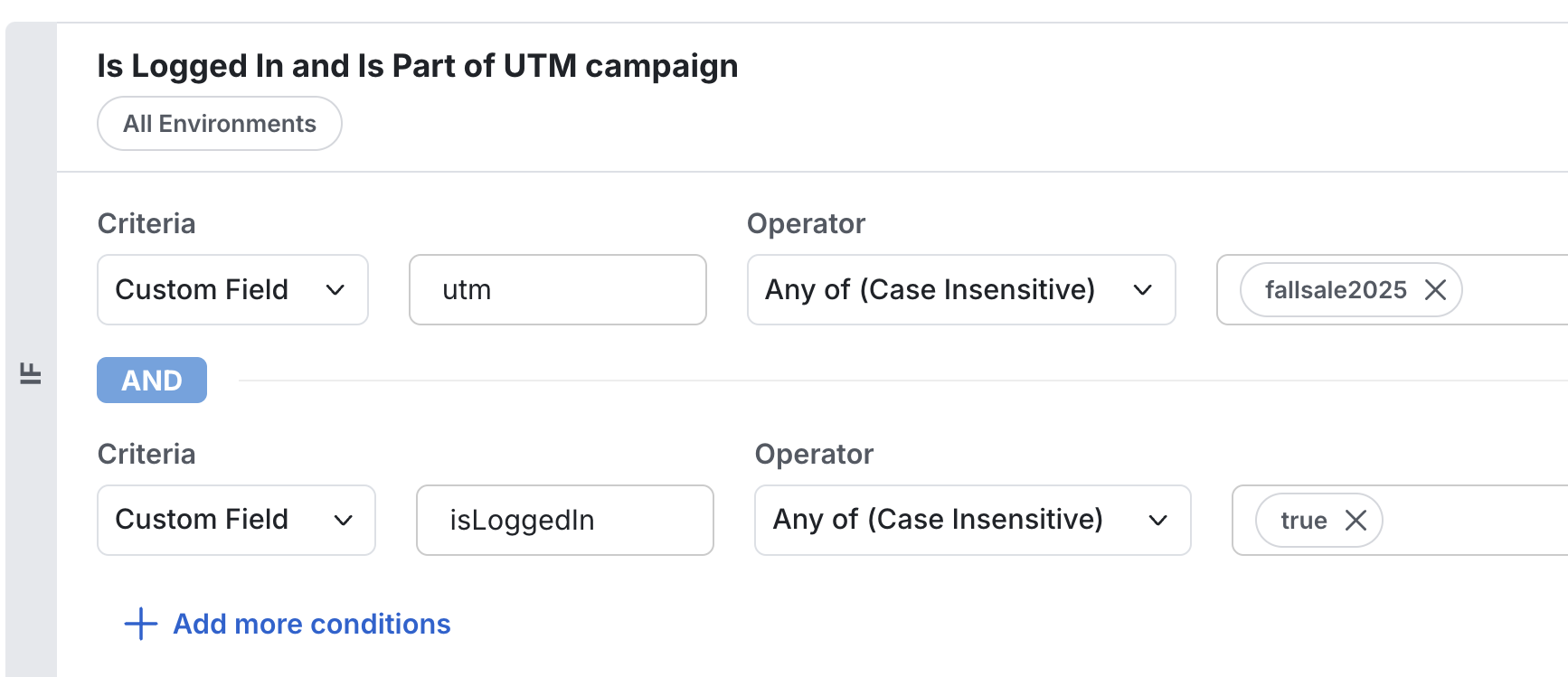
Async Timeouts
Limit how longinitializeAsync and updateUserAsync wait for network responses before falling back to cached values.
Data Adapter
StatsigClient uses an EvaluationsDataAdapter to manage caching and network fetches. The default implementation (StatsigEvaluationsDataAdapter) reads from local storage synchronously and refreshes values from Statsig asynchronously.
See Using EvaluationsDataAdapter for full examples, including bootstrapping, prefetching, and custom adapters.
Partial User Matching
UsecustomUserCacheKeyFunc with updateUserSync when you need to enrich a user locally without triggering a full network refresh.
Client Event Emitter
Subscribe to Statsig client lifecycle events to respond to initialization, logging, or evaluation changes.Quality & Troubleshooting
Testing
Mock Statsig APIs in Jest to isolate business logic.Debugging
When results look unexpected, use these tools to inspect what the SDK is doing.Enable Verbose Logging
Inspect the __STATSIG__ Global
Open your browser console and run __STATSIG__ to inspect the current client instance. Useful properties include _logger._queue for pending events.
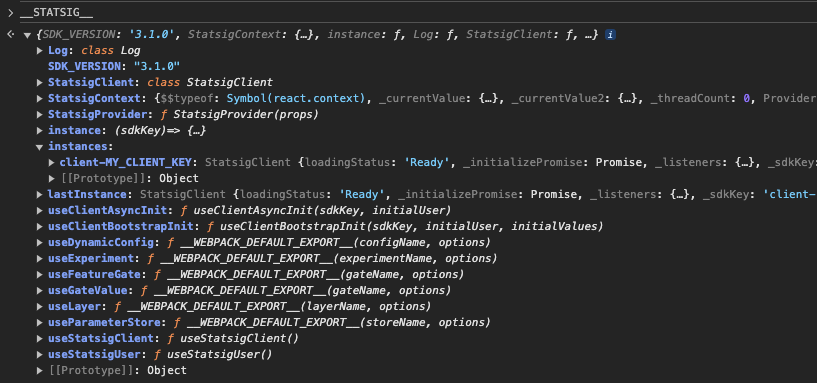
Review Network Traffic
Filter network requests byclient- to see initialization and logging calls.
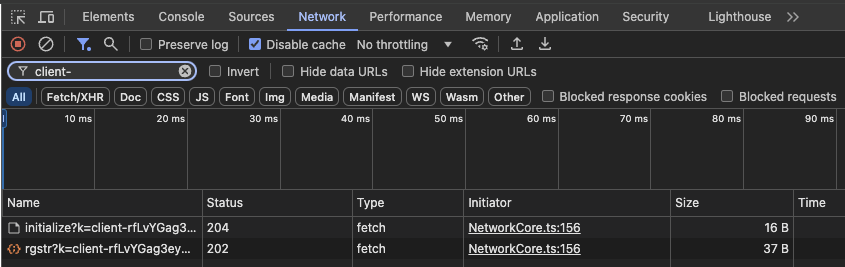
Check Evaluation Reasons
Network|NetworkNotModified— latest values from the API.Cache— loaded from local storage.NoValues— no cached values and network failed.Bootstrap— values provided viadataAdapter.setData.Prefetch— values fromdataAdapter.prefetchData.
/sdk/debugging for full details.
FAQs
Does the SDK use local storage or cookies?
Statsig’s web SDK does not set cookies. It stores gate/config values and unsent events inlocalStorage so features keep working when offline.
Can I access the SDK instance globally?
With multiple instances, pass the SDK key:
Statsig.instance('client-YOUR_KEY').